Team members and roles
Invite your team for free, what owners, admins and members can do, limit a member to some projects, and switch between workspaces.
Seats in PeekRank are free and unlimited, on every plan. Invite your whole team, and your clients if you like, and decide who manages what and who sees which projects.
Roles
Every workspace has one owner, any number of admins and members.
| Owner | Admin | Member | |
|---|---|---|---|
| Use every tool (billed from the workspace's balance) | ✓ | ✓ | ✓ |
| Create projects, add, check and remove keywords | ✓ | ✓ | ✓¹ |
| Create share links | ✓ | ✓ | ✓ |
| See every project | ✓ | ✓ | Only the ones given, if limited |
| Invite people, change roles and access, remove members | ✓ | ✓ | |
| Top up, and see Data & billing | ✓ | ✓ | |
| Report branding, API keys, limits for AI assistants | ✓ | ✓ | |
| Security log | ✓ | ✓ | |
| Replace or revoke share links, archive projects | ✓ | ✓ |
¹ A member limited to some projects can't create new projects.
The owner seat can't be changed or removed.
Invite someone
In the side menu, click Team.
Under Invites, type their Email, pick a Role (Member by default, or Admin) and, for a member, a Scope: All projects, or only the projects you pick.
Click + Invite. They get an email with a one-time link, valid for 14 days.
You can have up to 25 pending invites at a time.
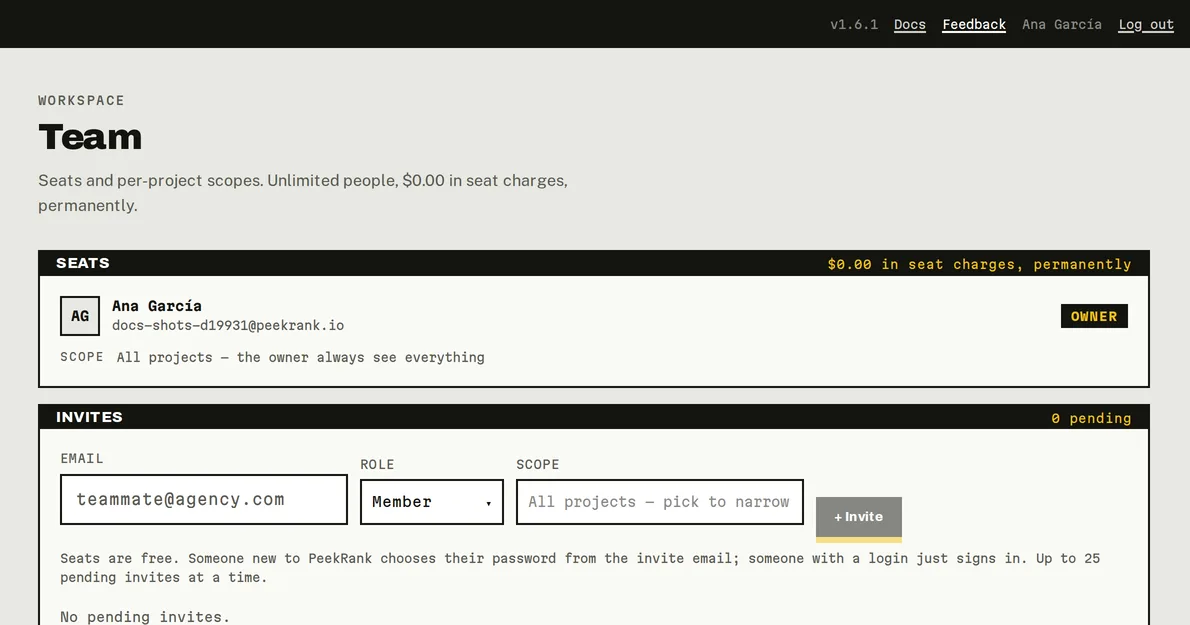
The Team page. Each pending invite shows its role, its scope, when it expires, and opened once they've started joining. Resend sends a fresh link (the old one stops working); ✕ revokes the invite.
What your invitee sees
- They click the link in the email and see who invited them and to which workspace, then click Continue.
- New to PeekRank? They choose their password in the next step. Already have a login? They sign in with the invited email.
- A short welcome (their name and, optionally, what they do) and they're in.
Signing in with the invited address, verified, also accepts the invite. If they were signed in with another address, the invite page tells them and lets them continue with the right one.
Change someone's role or access
On Team, under Seats, change a person's role between Admin and Member, or narrow a member's Scope to some projects (admins and the owner always see everything). Click ✕ to remove someone: they lose access to the workspace at once, and so do the AI assistants they connected to it.
Several workspaces
You can belong to several workspaces: your own and the ones you're invited to. When you do, a Workspace picker appears at the top of the side menu; your own is marked "(yours)". Each workspace has its own projects, balance and team.
Do it from your AI assistant
get_workspace: Workspace, plan and team. Free.manage_team: Manage the team. Set-up, nothing billed in the call.
manage_team only appears for owners and admins who allowed workspace management when connecting their assistant.
Try: "Who's on my PeekRank team, and which invites are pending?"
Last updated on