Connect your AI assistant
Connect PeekRank to Claude, ChatGPT, Claude Code, Codex, Cursor, VS Code or any MCP client, sign in with your PeekRank account, and start asking about your SEO.
PeekRank has an MCP server: the standard way AI assistants connect to apps. Once connected, you can ask your assistant about your rankings, keywords, competitors and AI visibility in plain words, and it answers from your own PeekRank data. It can also run research for you, within limits you set.
You sign in with your PeekRank account: there's no key to copy, and you can disconnect any time. The MCP server is in beta.
Jump to yours: Claude · ChatGPT · Claude Code · Codex · Cursor · VS Code · Other clients · API key
Server URL:
https://app.peekrank.io/mcpFastest: one command
If you have Node.js, this sets PeekRank up in every assistant on your computer (Claude Code, Codex, Cursor, VS Code, Windsurf, Gemini CLI and more). Each one asks you to sign in with PeekRank the first time you use it.
npx add-mcp https://app.peekrank.io/mcp -g -n peekrankIt uses the open-source add-mcp. Add -a claude-code (or another agent)
to set up only some.
Claude (web, desktop and mobile)
In Claude, open Customize → Connectors and click Add custom connector.
Name it PeekRank, paste the server URL and click Add.
Click Connect, sign in to PeekRank, pick the workspace and what Claude can do, and click Allow.
Added once, PeekRank shows up in Claude on the web, in Claude Desktop and in the mobile apps, and in Claude Code when you're signed in with the same Claude account. On Team and Enterprise plans, an Owner adds it in Organization settings → Connectors, then each member clicks Connect. Claude's Free plan allows one custom connector.
ChatGPT
Turn on Developer mode: Settings → Security and login → Developer mode (Plus, Pro, Business, Enterprise and Edu plans).
In Plugins, click + to create an app: name PeekRank, the server URL, authentication OAuth.
Sign in to PeekRank and approve. In a chat, pick Developer mode → PeekRank from the + menu.
ChatGPT asks you to confirm every billed tool before it runs.
Claude Code
claude mcp add --transport http --scope user peekrank https://app.peekrank.io/mcpThen sign in: run the command below, or type /mcp inside Claude Code, pick peekrank and Authenticate. Your
browser opens the PeekRank sign-in.
claude mcp login peekrank--scope user makes PeekRank available in every project, not only the current folder.
Codex
For the Codex CLI, the IDE extension and the desktop app (they share the same configuration):
codex mcp add peekrank --url https://app.peekrank.io/mcp
codex mcp login peekrank
Codex opens the PeekRank sign-in as soon as you add it; the second command signs in again whenever you need to (another account, an expired session).
Cursor
Add to Cursor, or add this to ~/.cursor/mcp.json:
{
  "mcpServers": {
    "peekrank": {
      "url": "https://app.peekrank.io/mcp"
    }
  }
}
Cursor asks you to sign in to PeekRank the first time it connects.
VS Code (GitHub Copilot)
Install in VS Code, or from a terminal:
code --add-mcp '{"name":"peekrank","type":"http","url":"https://app.peekrank.io/mcp"}'VS Code opens the PeekRank sign-in when you start the server.
Other clients
Any MCP client that supports remote servers works (Windsurf, Zed, Gemini CLI, Goose…): add the server URL as a streamable HTTP server. PeekRank uses the standard MCP sign-in (OAuth 2.1 with PKCE, with dynamic client registration and client ID metadata documents), so the client opens the sign-in by itself.
For scripts, CI or clients that can't sign in, an owner or admin can create an API key instead. See Sign-in, API keys and access.
What you approve when you connect
When you sign in, PeekRank asks:
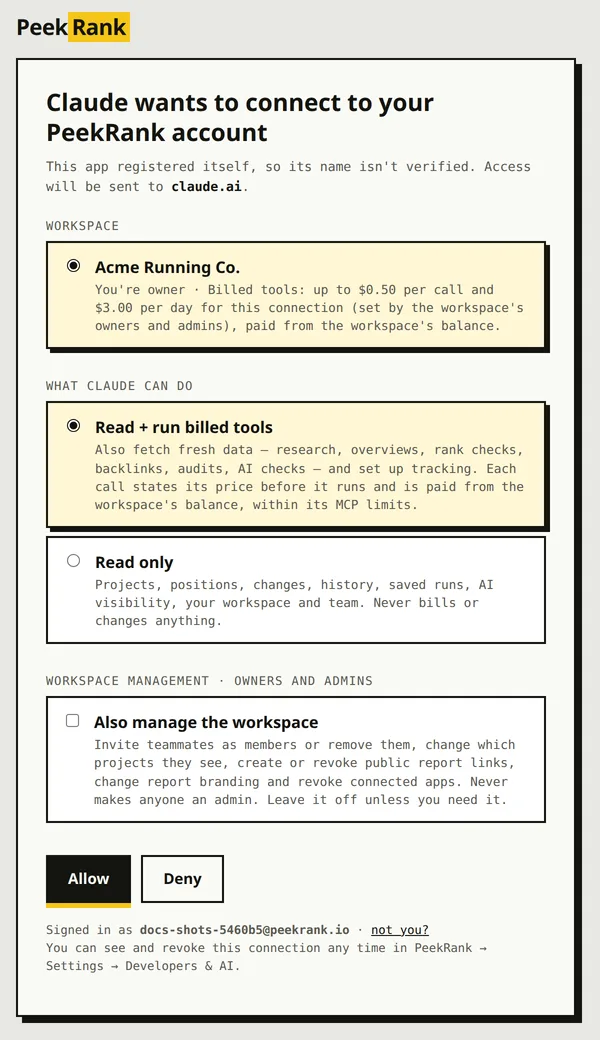
The consent screen an assistant opens the first time (sample data).
- Workspace: which of your workspaces the assistant works on. It acts as you there, with your role and your projects.
- What it can do:
- Read only: projects, positions, changes, history, saved runs, AI visibility, your workspace and team. It never bills or changes anything.
- Read + run billed tools: also fetch fresh data (research, overviews, rank checks, backlinks, audits, AI checks) and set up tracking. Each call states its price before it runs and is paid from the workspace's balance, within its limits.
- Workspace management (only if you're an owner or admin of that workspace): tick Also manage the workspace to let it invite teammates as members or remove them, change which projects they see, create or revoke public report links, change report branding and revoke connected apps. It never makes anyone an admin. Leave it off unless you need it.
Then click Allow. You can see and disconnect your connections any time in Settings → Developers & AI. More in Sign-in, API keys and access.
Check it works
Ask your assistant: "List my PeekRank projects." It should answer with your projects. Then try the recipes.
| If | Then |
|---|---|
| The assistant doesn't see PeekRank | Check the server URL, then restart the assistant or start a new chat. |
| It asks you to sign in again | Sessions renew while you use them; after a long break, sign in again from the assistant. |
| A billed tool is refused | Your connection may be read-only, or a limit was reached. See Spending limits for assistants. |
| You don't see a tool listed in MCP tools | Some tools only appear for some connections. See who sees which tools. |
Last updated on