Quick start
Create a free PeekRank account, set up your first project and see where your site ranks on Google, in about ten minutes.
By the end of this page you'll have a PeekRank account, a project for your website and your first keywords being checked on Google. It takes about ten minutes and no card: every account gets $1 of data free every month, which covers a small project.
Bought PeekRank on AppSumo?
Start from Redeem your AppSumo deal instead: it creates your account and activates your license in one go.
1. Create your account
Go to app.peekrank.io/signup (or Sign Up on peekrank.io).
Type your email and choose a password. PeekRank sends you an email: Confirm your email for PeekRank.
Open it and click Confirm my email: PeekRank opens on the next step. (If you'd rather go back to the PeekRank tab you left open, click I've verified it — continue there.)
The email can take a minute. If it doesn't arrive, check your spam folder or click Send me a new link.
Nothing opens until your email is confirmed: it's how PeekRank knows the address is yours.
2. Set up your workspace
Three short screens, once:
- Set up your workspace: your name and a name for your workspace (your agency, company or client). You can rename it later.
- About you: what describes you, your team size and your main goal.
- Last thing: the tools you use today, how many keywords you track and how you heard about PeekRank.
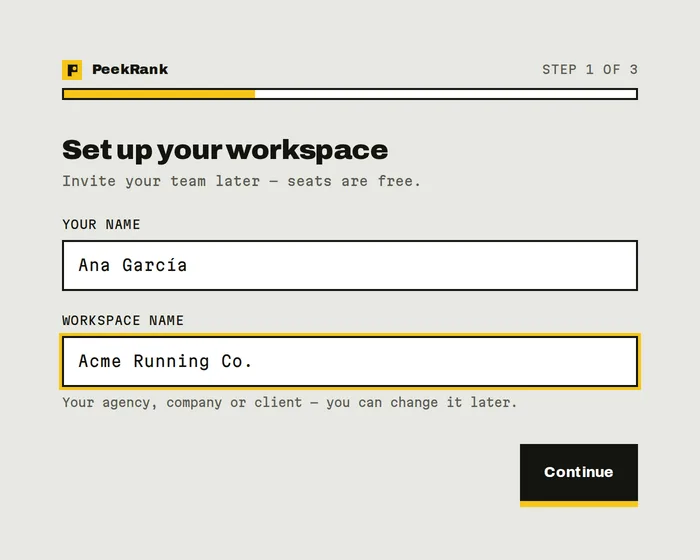
The first of the three set-up screens.
Click Finish and you land on Your toolkit, the dashboard with every tool. Your workspace already has its free data and room for 1 project.
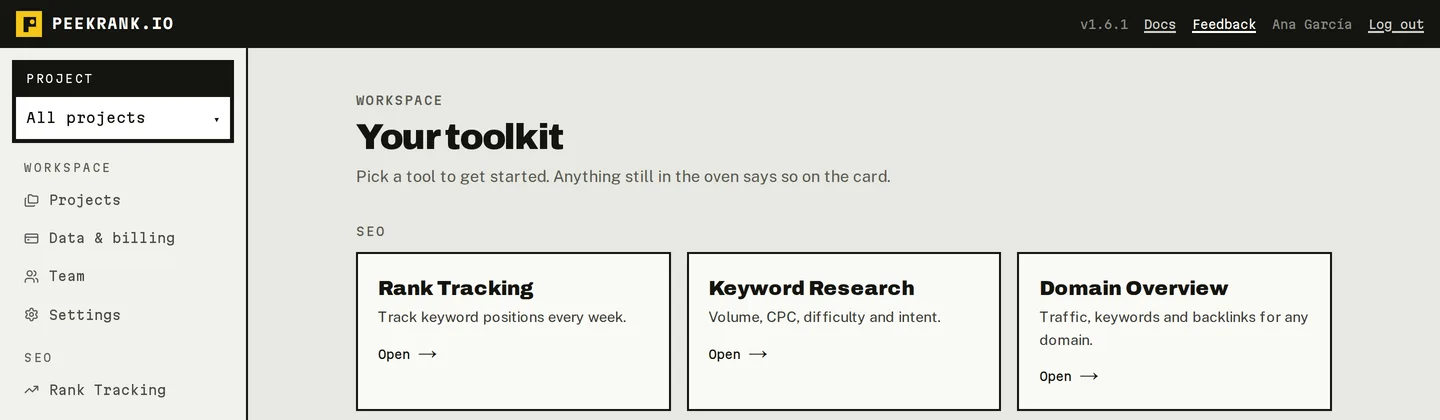
Your toolkit: every tool, in two sections.
3. Create a project
A project groups the keywords you track for one website.
In the side menu, click Projects, then New project.
In Project name, type something you'll recognise, like your site's or your client's name.
In Default domain, type your site's domain without https://, for example acme.com.
Click Create project. Its page opens.
Set the domain now
The form marks the domain as optional, but PeekRank needs it to check positions, and a project's domain can't be added or changed later in the app. Create the project with its domain.
4. Add your keywords
On the project page, click + Add keywords.
Type your keywords, one per line (or separated by commas). Five to ten is a good start.
Keep Also load their last 12 months of positions ticked if you want your charts to start with a year of history instead of empty. It costs $0.00312 per keyword, once.
Click Add keywords.
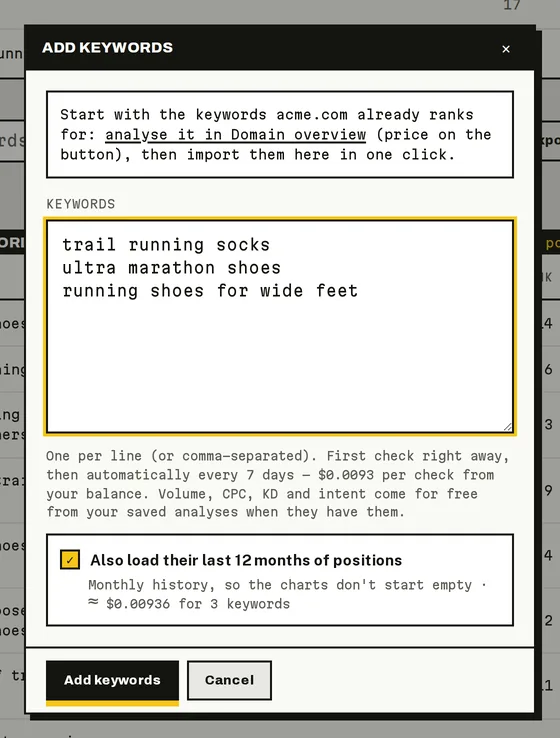
Adding keywords: the price of the first check and of the history is shown before you add them (sample data).
Adding keywords is free. Each one is checked on Google right away, then automatically every 7 days. While a check runs, its Rank cell says Checking…; positions usually arrive within a few minutes, and the page updates by itself while it's open.
What it costs: $0.0093 per keyword per check, about $0.04 per keyword a month. Ten keywords with their year of history cost about $0.124 to start and about $0.708 a month, project snapshot included. Your free $1 pays for it first.
5. Read your first results
- Rank is the keyword's position on Google: 1 is the top. 100+ means it isn't in the first 100 results.
- Δ 7d is how many places it moved in a week. A positive number means it moved up.
- Click History on a keyword to see its positions over time.
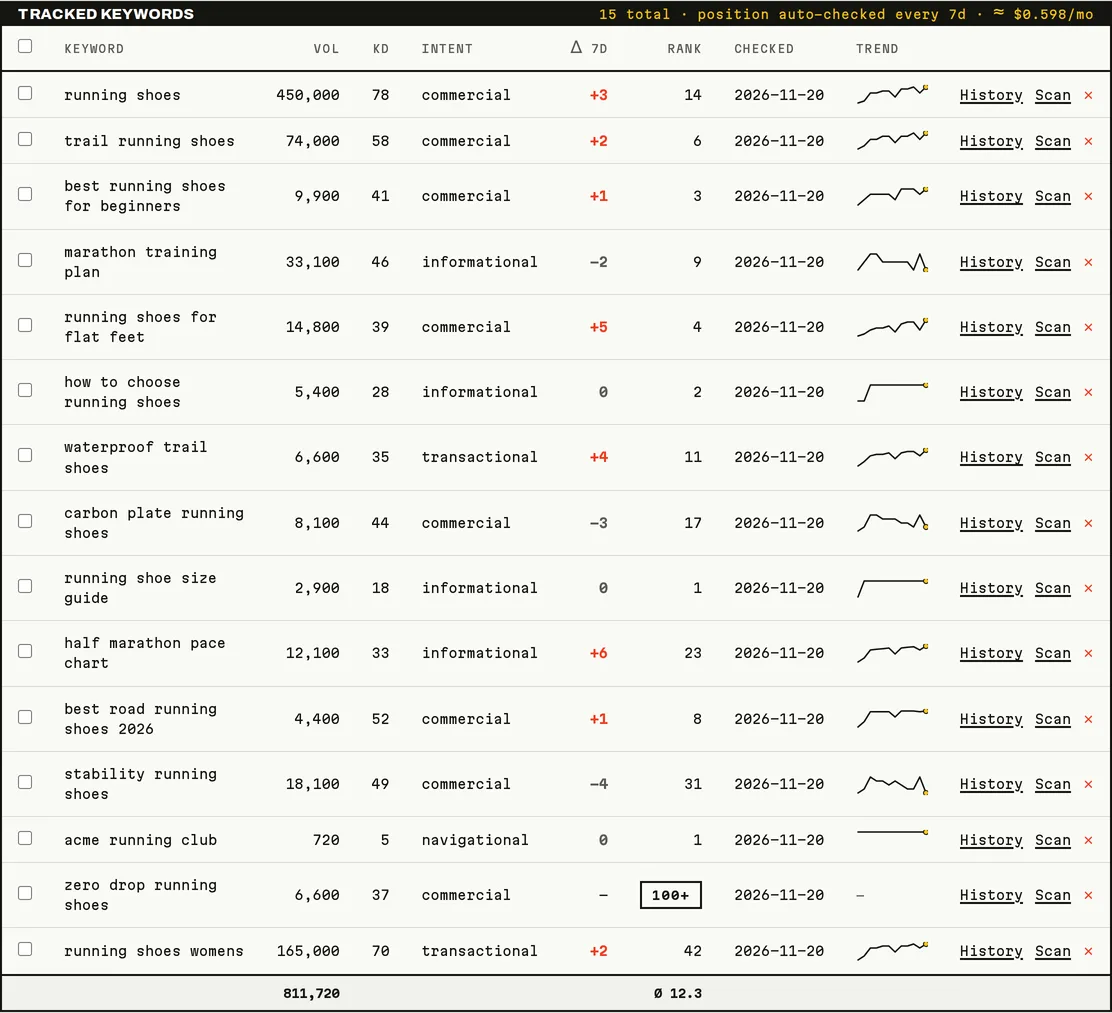
A project's tracked keywords (sample data).
The rest of the project page fills in as weeks go by: movers, the trend of your rankings, and a weekly snapshot of your domain and its backlinks. Read the project page explains each block.
Next steps
Track keywords
Import the keywords you already rank for, check positions now, and keep metrics up to date.
Connect your AI assistant
Ask Claude, ChatGPT or Cursor about your rankings, in plain words.
Track your brand in AI answers
See whether ChatGPT, Gemini and Perplexity name you when people ask.
Free data and your balance
How the free data works, what costs money, and how to top up.
Do it from your AI assistant
Once your assistant is connected, it can set the project up for you:
create_project: Create a project. Set-up, nothing billed in the call.add_keywords: Track keywords. Set-up, nothing billed in the call.get_project: Get project rankings. Free.get_seo_snapshot: SEO snapshot. Free.
Try: "Create a PeekRank project for acme.com and track these keywords: running shoes, trail shoes, marathon training plan."
Last updated on
PeekRank documentation
Learn PeekRank, the free SEO tool with AI superpowers: rank tracking, keyword and competitor research, site audits and AI visibility, from the app or your AI.
How PeekRank works
Workspaces, projects, tools and runs, what's automatic, what's free and what costs money, in five minutes.