Sign-in, API keys and access
Connect assistants with your PeekRank sign-in (OAuth) or a workspace API key, which tools each connection sees, and how to see and revoke connections.
There are two ways for an assistant or a script to use PeekRank, and both act as a person: with their role, their projects and nothing more.
| Sign-in (OAuth) | API key | |
|---|---|---|
| Best for | Claude, ChatGPT, Cursor, VS Code, Claude Code, Codex… | Scripts, CI, clients that can't sign in |
| Who can create it | Anyone in the workspace | Owners and admins |
| Acts as | The person who signed in | The person who created the key |
| Billed tools | If they chose Read + run billed tools, and the workspace lets them | If the key has billed access |
| Workspace management | If an owner or admin ticked Also manage the workspace when connecting | Never |
| Where to manage it | Settings → Developers & AI → Connected apps | Settings → Developers & AI → API keys |
Prefer signing in whenever your client supports it: there's nothing to copy or leak, and each person's connection follows their own access.
Sign-in (OAuth)
Your assistant opens PeekRank's sign-in the first time you use it (Connect your AI assistant). You choose the workspace and what it can do, and click Allow. The page says which app is asking (an app that registered itself is marked as unverified) and where access will be sent.
A connection stays signed in while you use it, and renews itself; after about a month without use, the assistant asks you to sign in again. Connecting the same app again replaces its previous connection.
Connected apps
Settings → Developers & AI → Connected apps lists the connections: the app, the person, its access, what it spent today and when it was last used. Everyone sees their own; owners and admins see everyone's. Revoke disconnects one at once.
When someone leaves the workspace, their connections are revoked with them.
Limits for connected apps
Owners and admins set, for every connection of the workspace:
- Max per call (USD): the most a single billed call may cost ($0.50 by default).
- Max per day, per connection (USD): what one connection may spend in a day ($3 by default).
- Members can use billed tools: on by default; off, members' connections are read-only.
Click Save limits. They apply from each connection's next call. See Spending limits for assistants.
API keys
Owners and admins create keys in Settings → Developers & AI → API keys:
Give the key a Key name you'll recognise, like Claude Code — laptop.
Choose its MCP access: Read only, or Read + billed tools with its own Max per call (USD) and Max per day (USD).
Click Create key and copy it: it's shown once. The dialog also gives you the setup lines for Claude Code, Cursor and VS Code.
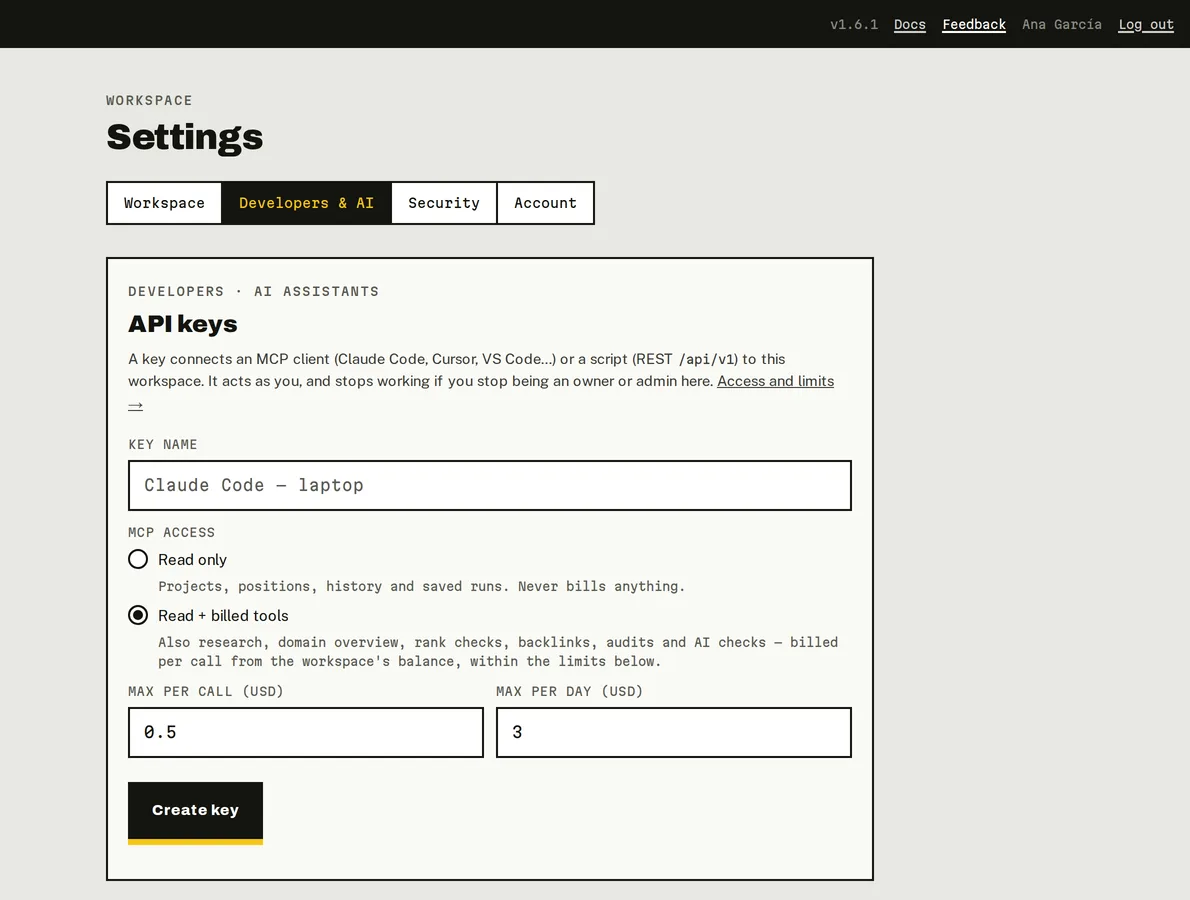
Creating an API key in Settings → Developers & AI.
Send it as a header:
Authorization: Bearer lk_live_…For example, in Claude Code:
claude mcp add --transport http --scope user peekrank https://app.peekrank.io/mcp --header "Authorization: Bearer lk_live_…"A key acts as the person who created it and stops working if they stop being an owner or admin of the workspace. Edit changes its access and limits (from its next call); ✕ revokes it at once. Keys also work with the REST API.
Which tools your assistant sees
The server only lists the tools a connection may use, so your assistant never tries what it can't do:
| Connection | Sees |
|---|---|
| Read only | The free tools: everything that reads what PeekRank stored. |
| Read + billed tools | Also the billed tools, and the set-up tools (create projects, add keywords, set up Prompt Tracking…), because tracked keywords and prompts are billed later. |
| Owner or admin | Also the money and security reads: spending, connections, the security log. |
| Owner or admin who ticked Also manage the workspace | Also team, share links, report branding and revoking connections. |
Every tool and who sees it: MCP tools.
Do it from your AI assistant
list_connections: Connected apps and API keys. Free.revoke_connection: Revoke a connection or API key. Set-up, nothing billed in the call.get_security_log: Security log. Free.
Last updated on
Connect your AI assistant
Connect PeekRank to Claude, ChatGPT, Claude Code, Codex, Cursor, VS Code or any MCP client, sign in with your PeekRank account, and start asking about your SEO.
Spending limits for assistants
How PeekRank keeps AI assistants from overspending, max_cost_usd on every billed call, per-call and daily limits, and what each refusal means.